


USB Tv Connector
4.646.00 Reviews
App Specs
- Version
- 157.0.0
- Updated On
- License
- Free
- Downloads
- 10,000+
- Developer
- Syscraft Labs
- Categories
- Libraries & Demo
- Platform
- Android
Screenshots
 Analysis by AppCompare
My first-week reaction to USB Tv Connector is that it aims at a simple, familiar need: getting something on a phone onto a television without turning the setup into a project. The appeal is easy to understand when someone has a clip, photo, or show ready to share and would rather use the larger screen. But a useful first impression is not the same as lasting value. For this kind of tool, the real test is whether the connection works reliably with the devices you actually own and whether you have a reason to reach for it again next week.
Who is likely to get the most from it
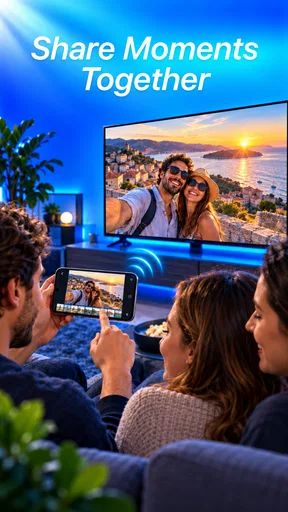
I’d consider it most useful for someone who occasionally wants to show phone content to family or friends, or who needs a quick way to display material in a room with a television. A practical example is arriving at a family gathering with a set of photos on your phone: instead of passing the handset around, you can try putting them on the TV and let everyone look together. That is a more convincing use case than expecting the app to replace a dedicated streaming device for everyday television.
It may also suit people who prefer trying a direct phone-to-TV connection before buying extra hardware. The app is free to install and is listed for Everyone, so it is easy to consider as a low-commitment experiment. I would still check whether your phone and television can work together before planning an important presentation or movie night around it. A familiar cable shape alone does not guarantee that two devices will support the same kind of connection.
A sensible test before you depend on it
For a first run, I’d choose a short, nonessential video or a handful of photos rather than starting with a long film. That lets you see whether the TV recognizes the connection, whether the displayed image is framed comfortably, and whether the phone remains usable while connected. It also makes troubleshooting less frustrating: if the setup does not cooperate, you have not already settled in for a full evening around it.
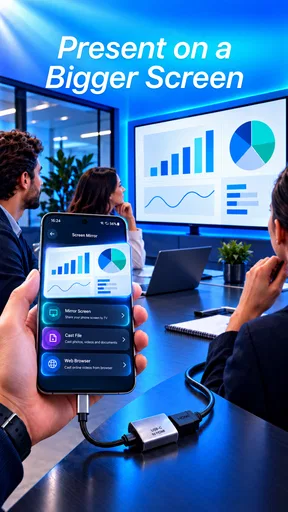
For a presentation, I’d test the actual file and the room before people arrive. Check that any captions or small text are readable from the seats, and keep a backup plan such as presenting directly from the phone or using the room’s usual display setup. These are not special tricks hidden in the app; they are sensible precautions for any phone-to-screen workflow where a connection has to work on demand.
Where it sits among the alternatives
Compared with wireless casting, a USB-based approach can be appealing when you want a direct physical connection and do not want to make the viewing session depend on a wireless network. The trade-off is that a cable can limit where the phone sits, and the television, handset, and connection method all need to cooperate. Wireless options usually offer more freedom to move around, while a dedicated streaming device can be the better choice if you watch on the TV regularly and want a settled, repeatable setup.
I would not treat this app as a universal adapter or as a guarantee that every television can display every phone. The product is presented as a connector for phone-to-TV use, but the experience still depends on the devices involved. If your priority is reliably streaming subscription services, an app or device designed specifically for that service may be less fiddly. If your priority is occasionally sharing what is already on your phone, trying this kind of connection can make more sense.
Worth Reading Before You Choose

Flipboard Shows What News Apps Must Do Beyond the Feed

Switching to Android Auto Means Rethinking Your Driving Routine

Google Calendar Makes a Crowded Week Easier to Manage

Ludo King Makes the Most of the Minutes Between Plans

Baby Panda World Brings Quick Play to Modern Phones, but Its Game Library Feels Busy

ESPN’s Live Game View Makes Following Close Games Easier
Setting Up the Connection
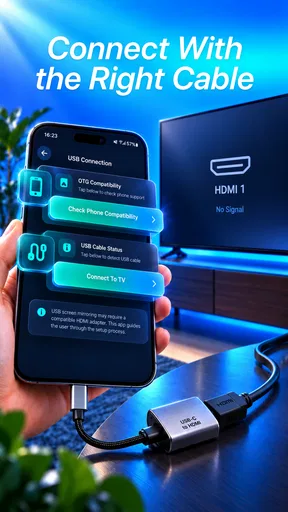
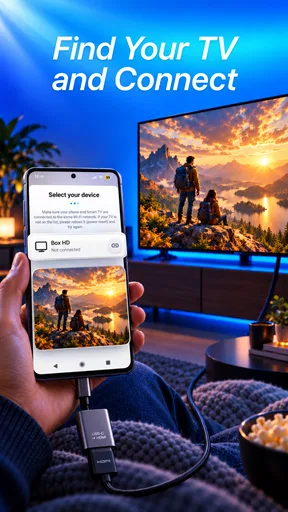
Let's dive right into the setup process. Getting started with the USB TV Connector is a breeze. First, you'll need a compatible USB cable. Once you’ve got that sorted, simply plug your device into your TV. The app instantly recognizes the connection, and you're prompted to follow a few on-screen instructions. It’s as straightforward as it gets—no rocket science involved.
One thing I absolutely loved was the intuitive interface. The app guides you every step of the way, so you won't find yourself scratching your head. Plus, if you’re like me and have a tendency to skip reading instructions, this app is forgiving.
Streaming Quality and Performance
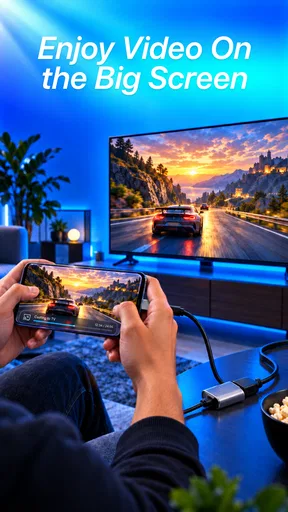
Now, onto the good stuff—the streaming quality. I tested it with several different shows and movies, and the picture quality was impressive. Whether you’re into high-action scenes or serene landscapes, the app delivers crisp visuals without any noticeable lag.
However, make sure your phone’s battery is charged or keep it plugged in. Streaming can be quite the battery drainer, but hey, that’s a small price to pay for watching your favorite flicks on a big screen, right?
Compatibility and Features
Compatibility was another aspect I was keen on checking out. The app supports a wide range of devices, which is a huge plus. Whether you're an Android aficionado or an iOS enthusiast, the app's got you covered. It even supports older model TVs, which is a nice touch for those of us who haven't upgraded to the latest tech just yet.
Another feature I found useful was the ability to mirror your screen. This is perfect for presentations or just showing off your latest vacation photos to friends. The mirroring is smooth, and there’s hardly any delay, which is crucial for a seamless experience.
User Experience
Let’s talk about the user experience, which in my opinion, can make or break an app. The USB TV Connector app nails it with a clean, user-friendly interface. Navigating through the app is a breeze, and everything is laid out logically.
If you ever find yourself stuck, there’s a handy help section within the app that addresses common issues. It’s like having a tech-savvy friend on call 24/7.
Room for Improvement
No app is perfect, and this one has its quirks. Sometimes the connection can be a bit finicky, especially if you’re juggling multiple devices. A minor inconvenience, but it’s worth mentioning.
I’d love to see more customization options in future updates. Maybe themes or additional settings for advanced users? It’s not essential, but it would be a nice touch.
Also, while the app works well with most TVs, there might be the occasional compatibility hiccup. It’s a good idea to check your TV model beforehand to ensure a smooth experience.
Month-to-month value and upkeep
Long-term usefulness here depends less on collecting features and more on building a dependable habit. If I only need a bigger screen once in a while, I can see keeping a connector app available rather than setting up another device. If I watch television every evening, though, a built-in TV app or dedicated streamer is usually more convenient: it avoids taking out the phone and repeating the connection process whenever I want to watch.
The app is in the Libraries & Demo category, and its developer is syscraft labs. Its average rating is 4.6 from around 500 ratings, with 46 reviews, and it has over 10,000 installs. Those figures suggest that people are finding it and generally responding well, but they cannot tell me whether it will work with a particular phone-and-TV pairing. I’d use them as a reason to consider a trial, not as a substitute for testing my own setup.
For maintenance, I would keep the process simple: remember which cable and TV input worked, and avoid changing several parts of the setup at once when something goes wrong. If the connection fails, first check that the cable is seated and that the TV is on the input you used before. Then reconnect and follow the app’s prompts. This step-by-step approach is more useful than repeatedly unplugging everything, because it helps identify whether the issue is the cable, input selection, or device compatibility.
Small habits that reduce friction
A couple of practical habits can make occasional use less annoying. I’d keep the compatible cable with the television rather than searching for it right when guests arrive, and I’d charge the phone before a long viewing session. If you are mirroring a presentation, turn off distractions on the phone where possible and open the material in advance. That keeps the audience focused on the content instead of notifications or setup delays.
There is also a useful distinction between sharing a file and mirroring the whole screen. For a handful of photos, screen mirroring is convenient because you can move through them from the handset. For anything that needs sustained attention, such as a film, I would make sure the phone can stay connected and powered without being awkward to hold or place. A cable-based setup can be dependable once arranged, but the phone’s position becomes part of the viewing setup.
The current version is 157.0.0, and the app is listed for devices running Android 7.0 or later. That makes the minimum software requirement worth checking before installation, especially if you keep an older handset as a spare. The app is free, with in-app purchases listed at $9.99 per item; I’d pay attention to any purchase prompt and decide whether it is relevant to my use rather than assuming every part of the experience costs nothing.
When the novelty wears off
The main source of fatigue is repetition. If I have to reconnect devices, search for the right cable, or troubleshoot a different television each time, the convenience can disappear quickly. That matters most in shared spaces, where someone else may have changed the TV input or moved the cable. A quick test at home can establish a reliable routine, but I would not expect a phone-to-TV app to remove every compatibility wrinkle.
It is also not the best fit for someone who wants hands-off viewing. A dedicated streaming box or the TV’s own apps can be easier for regular watching because they do not tie up the phone. Wireless casting is more comfortable if you need to move around with the handset, though it brings its own dependence on the network and compatible equipment. I’d choose based on the actual routine: occasional sharing favors a simple connector; frequent, uninterrupted viewing favors a purpose-built TV setup.
USB Tv Connector runs on a freemium model, so the free starting point is useful for evaluating whether the connection suits your devices. I would not buy anything until I had confirmed that the basic workflow solves a recurring need. If it only works for a one-off occasion, a purchase is unlikely to improve the long-term value; if it becomes the easiest way to share content in your home, then reviewing the available in-app option in context may be worthwhile.
Final Thoughts
All in all, the USB TV Connector app is a fantastic tool for anyone looking to elevate their viewing experience without the clutter of cables. It's easy to use, offers great streaming quality, and supports a wide range of devices. Sure, it has minor areas for improvement, but they’re easily overshadowed by the app’s overall performance.
If you’re looking to bring the theater experience right into your living room, give this app a whirl. You won’t be disappointed.
My lasting verdict is a little more practical: I’d keep it if I regularly share phone content on a TV and have already confirmed that my own devices work well together. For that person, the appeal can outlast the first week because the same quick routine solves a real, recurring problem. If I rarely connect a phone to a television, or if I want a dedicated home for everyday streaming, I would choose a more established TV-based option instead. That is the dividing line between a handy tool and an app that simply takes up space.
Pros
- Easy to set up with minimal technical knowledge.
- Supports a wide range of TV models.
- Offers high-quality video streaming.
- User-friendly interface with intuitive controls.
- Compatible with both Android and iOS devices.
Cons
- Requires a stable internet connection.
- Limited compatibility with older devices.
- Occasional lag during high-resolution streaming.
- Ads can be intrusive in the free version.
- Subscription needed for premium features.
FAQs for USB Tv Connector
What is USB TV Connector and how does it work?
USB TV Connector is an application that allows users to connect their smartphones or tablets to a TV using a USB cable. It works by mirroring the device's screen onto the TV, providing a larger display for viewing videos, photos, or playing games. The app supports various file formats and ensures smooth streaming for an enhanced viewing experience.
Is USB TV Connector compatible with all devices?
The app is compatible with a wide range of Android and iOS devices, but it is essential to check your device's specifications and operating system version for compatibility. Older devices or those with outdated software might face issues with connectivity or performance. It's recommended to update your device to the latest OS version for optimal results.
Do I need any additional equipment to use USB TV Connector?
Yes, you will need a compatible USB cable to connect your device to the TV. Depending on your TV's input options, you may also require an adapter. It's important to ensure that both the cable and adapter are of good quality to maintain a stable connection and avoid any connectivity issues during use.
Can I use USB TV Connector without an internet connection?
Yes, USB TV Connector does not require an internet connection to function. The app operates through a direct USB connection between your device and the TV, allowing you to enjoy content without the need for Wi-Fi or data. This makes it especially useful in areas with limited or no internet access.
Are there any limitations to using USB TV Connector?
While USB TV Connector offers a seamless mirroring experience, there are some limitations. The quality of the output may vary based on your device's resolution and processing power. Additionally, certain apps with DRM (Digital Rights Management) restrictions may not display content on the TV. It's advisable to check such app policies before use.


